


0.2.0
tango-excel-cw is a library for exporting or generating Excel files using a
useExcelExporter hook function. The config object allows you to quickly configure the relevant information for Excel export, thus enabling Excel generation. This library is suitable for work order generation, batch export of year-end data, and more.It's based on two third-party libraries: exceljs and file-saver.
During installation, you need to install these two third-party libraries as core dependencies. Instead of packaging them directly into the package, we include them as This ensures compatibility with projects that already have these two libraries installed, and also effectively avoids the "phantom dependency" issue.
During installation, you need to install these two third-party libraries as core dependencies. Instead of packaging them directly into the package, we include them as This ensures compatibility with projects that already have these two libraries installed, and also effectively avoids the "phantom dependency" issue.
How to use?
1.Installation
npm i tango-excel-cw exceljs file-saver2.Import
import { useExcelExporter } from "tango-excel-cw";3.Use

// react
import { useExcelExporter } from "tango-excel-cw";
import { MaterialButton } from "tango-ui-cw";
import Tree from "@/assets/yourimg.jpg";
import DemoExcel from "@/assets/youremptyexcel.xlsx";

function Demo() {
  const { exportExcel } = useExcelExporter();
  const config = {
    data: {
      id: 1,
      treenumber: "110C1892",
      treekind: "poplar",
    },
    fileName: "export.xlsx",
    template: DemoExcel,
    cellMap: {
      A3: "id",
      B3: "treenumber",
      C3: "treekind",
    },
    startRow: 2,
    image: {
      url: Tree,
      range: {
        tl: { col: 6, row: 2 },
        br: { col: 7, row: 3 },
      },
    },
    onBeforeExport: () => console.log("prepare to export..."),
    onSuccess: () => console.log("export successful!"),
    onError: (err) => console.error("export failure", err),
  };

  function ExportExcelDemo() {
    exportExcel(config);
  }

  return (
    <>
      <MaterialButton onClick={ExportExcelDemo}>Export to Excel</MaterialButton>
    </>
  );
}

export default Demo;
Demo
Batch data insertion and precise control
Scenario: The format after table export is: the first row of the table needs to be filled with a unified 'table export time', and the third row of the table is the first row of table data. In this case, only using the
startRow parameter to control the starting insertion position of the data cannot fill the 'table export time' data into the first row of the table. Therefore, you can combine the cellMapStatic parameter to achieve this requirement. The sample code is as follows:
  // traverse the form data finalDatas requested
  const dataRows = finalDatas.map(item => ({
    date: item.time,
    location: item.location,
    treekind: item.treekind,
    treenumber: item.treenumber,
    abnormal: item.abnormal,
    staff: item.staff,
    range: rangeStr          // table export time
  }));

  // configure parameters for exporting to Excel
  const config = {
    data: dataRows,          // data sources
    fileName: export.xlsx,  // export file name
    template: EmptyTable,    // empty demo excel
    startRow: 3,             // the starting row for data insertion
    cellMap: {               // cell map configuration
      A: "date",
      B: "location",
      C: "treekind",
      D: "treenumber",
      E: "abnormal",
      F: "staff"
    },
    cellMapStatic: {         // accurate mapping of static data (not affected by startRow)
      F1: "range"            // insert 'table export time' into the specified position
    },
  };
useExcelExporter Function
Config Props
Image Props
Range Props
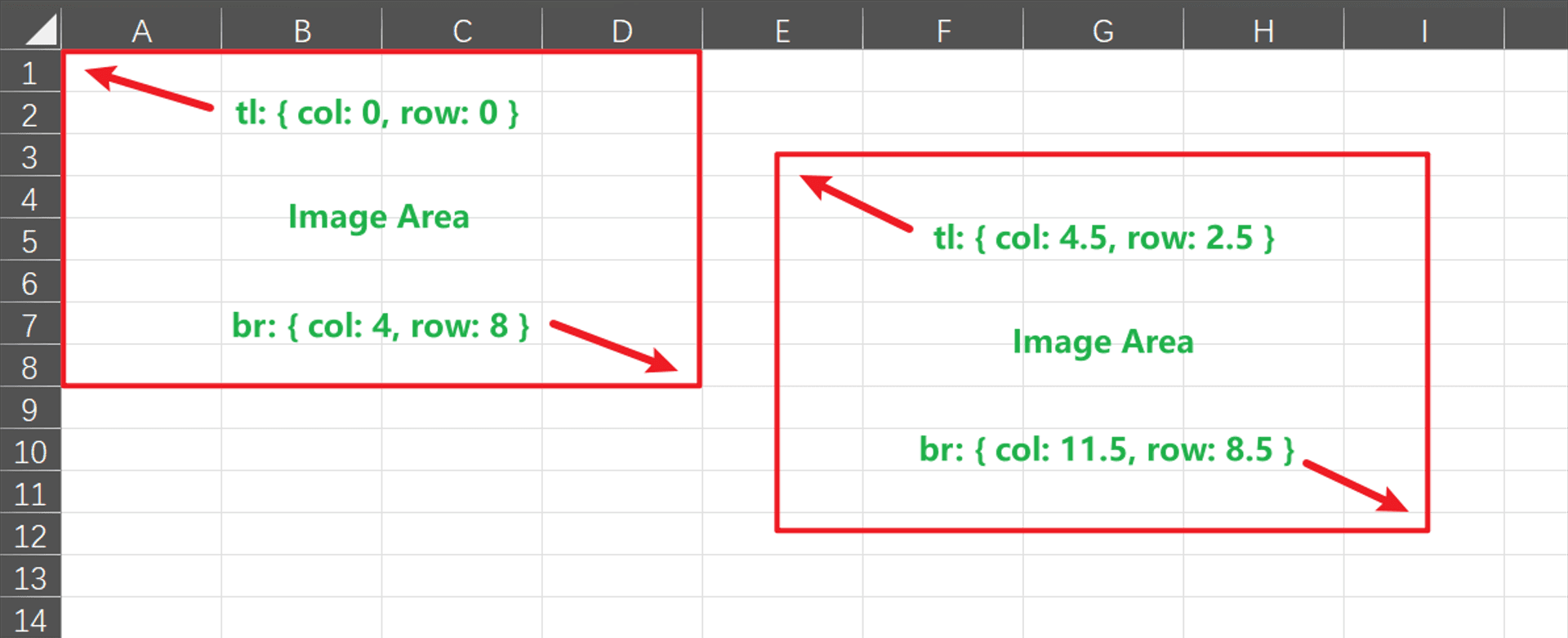
InRange Props